Documentation · version 1.0.0 · 30 October 2026
Duo Collection: 10 SwiftUI apps for the foldable iPhone, every iPhone and iPad
Duo Collection ships as one Xcode project named DuoApps. Inside it are ten apps and the shared DuoKit framework code.
This package contains the full Swift and SwiftUI source code of ten finished apps and the shared DuoKit code they all use. Each app is designed for the foldable two-screen iPhone (called "iPhone Duo" in this guide): it changes its layout when the phone is closed, fully open, or half-folded like a small laptop. The same apps also run on every regular iPhone and iPad.
This guide assumes you have never published an iOS app before. Follow it from top to bottom the first time. Each step names the exact file or Xcode screen to use.
 PocketRetro handheld console, 4 original games
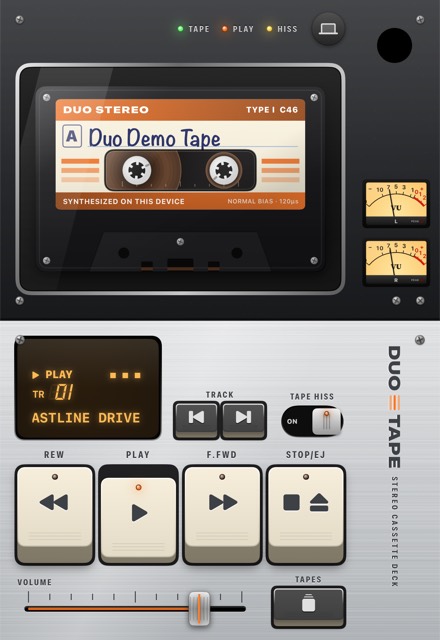
 TapeCassette deck for your music library
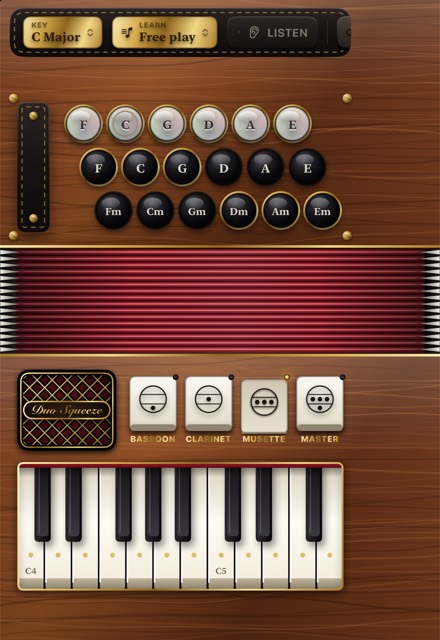
 SqueezePlayable accordion with synthesised reeds
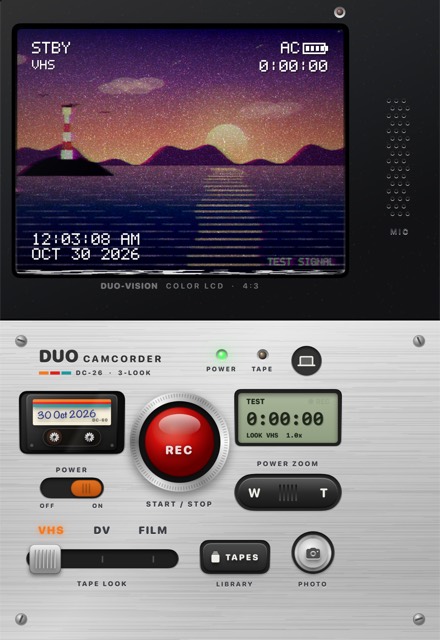
 Camcorder90s camcorder: VHS, DV and film looks
 FleetNaval battle vs computer or pass and play
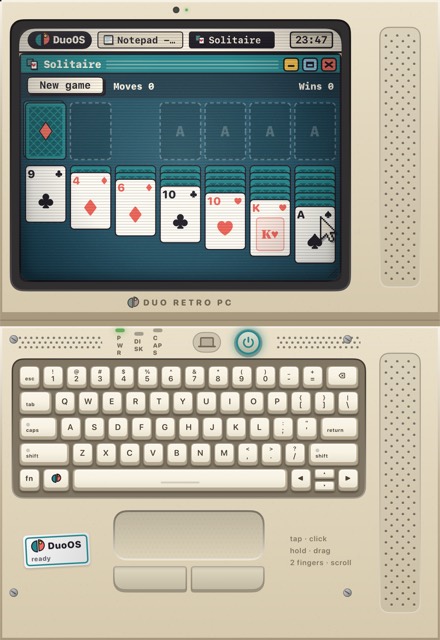
 Retro PCTiny laptop with an original retro OS
 DinerSandwich-building and grilling game
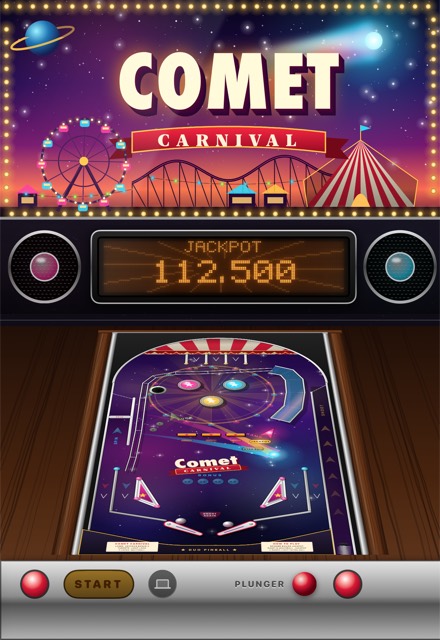
 PinballPhysics pinball with backglass and DMD
 TypewriterMechanical typewriter with PDF export
 RadioTube radio tuning real internet stations
Key facts
| Item | Value | Where it is set |
|---|---|---|
| Language / UI | Swift (language mode 5), SwiftUI with some UIKit | project.yml → SWIFT_VERSION |
| Minimum OS | iOS / iPadOS 26.0 | project.yml → deploymentTarget |
| Devices | iPhone and iPad (universal) | project.yml → TARGETED_DEVICE_FAMILY: "1,2" |
| Third-party libraries | None. No Swift packages, no CocoaPods | Only Apple frameworks are imported |
| Backend / API keys | None needed. Radio uses a free public directory without a key | Radio Browser |
| Ads, in-app purchases, analytics | None in the code | You may add your own |
| Audio files | None. All sound is synthesised in code | See each app's Audio/ folder |
Requirements
| You need | Why |
|---|---|
| A Mac with macOS that runs Xcode 27.1 or newer | The apps are built and tested with Xcode 27.1 (iOS 27.1 SDK). Xcode is free in the Mac App Store. iOS apps cannot be built on Windows or Linux. |
| Target devices on iOS / iPadOS 26.0 or newer | Minimum deployment target in project.yml. |
| An Apple ID (free) | Enough to run on the simulator and, with a free "Personal Team", on your own device for testing. |
| An Apple Developer Program membership (paid, from Apple) | Required to publish on the App Store and for TestFlight. Not included in this package. |
| An iPhone Duo (optional) | Not required. The iPhone Duo simulator in Xcode and any iPhone or iPad work for development. |
| Internet connection (Radio only) | Radio loads its station list and streams online. The other nine apps work fully offline. |
| XcodeGen (optional) | Only if you want to regenerate the Xcode project after editing project.yml. See XcodeGen. |
What's in the ZIP
Unzip the download to a folder without spaces in its path, for example ~/Developer/. You will see:
duobundle-v1.0.0/
├── README.md                Short start guide
├── CHANGELOG.md
├── documentation/           This documentation (open index.html)
├── licenses/                Third-party notices
└── source/                  The Xcode project: open source/DuoApps.xcodeproj
Everything below lives inside source/:
source/
├── DuoApps.xcodeproj        Ready-to-open Xcode project (10 apps, 10 schemes)
├── project.yml              XcodeGen recipe the .xcodeproj was generated from
├── README.md
├── Shared/
│   └── DuoKit/              Code compiled into every app
│       ├── DuoPosture.swift       closed / open / laptop posture logic
│       ├── PostureMenu.swift      the posture picker shown in each app
│       ├── DuoLayouts.swift       FoldSplit, FaceToFace, HingeGap
│       └── DuoDisplayClass.swift  size-class fix for the Duo inner display
├── Config/
│   ├── DuoTape-Info.plist   background audio for Tape
│   └── DuoRadio-Info.plist  background audio + media streaming exception for Radio
└── Apps/
    ├── DuoPocket/           one folder per app:
    ├── DuoTape/               *App.swift            entry point (@main)
    ├── DuoSqueeze/            Assets.xcassets/      AppIcon.appiconset (the icon)
    ├── DuoCamcorder/          PrivacyInfo.xcprivacy privacy manifest
    ├── DuoFleet/              Audio/, Layouts/, Views/, Model/ ... the app's code
    ├── DuoRetroPC/
    ├── DuoDiner/
    ├── DuoPinball/
    ├── DuoTypewriter/
    └── DuoRadio/
The included DuoApps.xcodeproj is generated with an empty signing Team and placeholder bundle IDs com.yourcompany.duo.*. You set your own Team and IDs in the steps below.
Every app is a separate Xcode target with its own scheme of the same name: DuoPocket, DuoTape, DuoSqueeze, DuoCamcorder, DuoFleet, DuoRetroPC, DuoDiner, DuoPinball, DuoTypewriter, DuoRadio. Each target compiles Shared/DuoKit plus its own Apps/<TargetName> folder.
Quick start (10 minutes)
- Install Xcode 27.1 or newer from the Mac App Store and open it once so it installs its components.
- Double-click
source/DuoApps.xcodeprojin the unzipped folder. - In the toolbar at the top of Xcode, click the scheme menu (next to the Run ▶ button) and choose an app, for example DuoFleet.
- Next to it, pick a simulator, for example iPhone Duo or any iPhone or iPad.
- Press Cmd + R. The app builds and launches in the simulator. No signing is needed for the simulator.
Installation step by step
1. Open the project
- Unzip the package. Keep the folder structure as it is: the project expects
Apps/,Shared/andConfig/next toDuoApps.xcodeprojinsidesource/. - Double-click
source/DuoApps.xcodeproj(or in Xcode: File → Open… and select it). - Wait until the status at the top of the window says "Ready" or shows the indexing progress. There are no packages to download.
2. Set your Team (signing)
Signing is only needed to run on a real device or to publish. Do this for each app you plan to use.
- Click the blue DuoApps project icon at the top of the left sidebar (the Project navigator).
- Under TARGETS, select the app, for example DuoFleet.
- Open the Signing & Capabilities tab.
- Keep Automatically manage signing ticked. In Team, choose your team. If the list is empty, click Add an Account… and sign in with your Apple ID.
- Change Bundle Identifier from
com.yourcompany.duo.fleetto an ID you own, for examplecom.acme.fleet(see Bundle ID). - Repeat for every other target you will run on a device.
project.yml, set DEVELOPMENT_TEAM: "YOUR_TEAM_ID" (your 10-character Team ID from developer.apple.com/account → Membership details) and change the bundle IDs, then regenerate the project with XcodeGen.3. Run on a simulator
- Choose the scheme (app) in the toolbar.
- Choose a simulator. To see the foldable layouts, use the iPhone Duo simulator if your Xcode lists it (Xcode → Window → Devices and Simulators → Simulators → + lets you add one). An iPad simulator also shows the "open" layouts.
- Press Cmd + R.
The simulator has no camera, microphone or music library. Camcorder shows a built-in test signal instead of the camera (Apps/DuoCamcorder/Engine/TestSignal.swift), and Tape offers its synthesised demo tape. Test camera and music features on a real device.
4. Run on your iPhone or iPad
- Complete step 2 for the app.
- Connect the device with a cable (or use the same Wi-Fi after pairing once) and unlock it. Tap Trust if asked.
- On the device, turn on Settings → Privacy & Security → Developer Mode and restart when asked (only the first time).
- Choose the device in the Xcode toolbar and press Cmd + R.
- With a free Personal Team, the device may say the developer is not trusted. Open Settings → General → VPN & Device Management, tap your Apple ID and choose Trust.
5. XcodeGen (optional)
You do not need XcodeGen to use the package: the ready DuoApps.xcodeproj is included. project.yml is the short, readable recipe that the project was generated from. Use it if you prefer to change settings for all apps in one text file.
# one-time install (needs Homebrew from https://brew.sh)
brew install xcodegen

# in the unzipped source/ folder, after editing project.yml
cd ~/Developer/duobundle-v1.0.0/source
xcodegen generatexcodegen generate rewrites DuoApps.xcodeproj. Settings you changed only inside Xcode (Team, bundle IDs, versions) are replaced by the values in project.yml. Pick one way of working: either edit in Xcode and never regenerate, or edit project.yml and always regenerate. Close Xcode before regenerating.Tested with XcodeGen 2.45.2. New Swift files you add inside Apps/<App>/ are picked up automatically when you regenerate, because the targets include whole folders.
Check the project from the Terminal (optional)
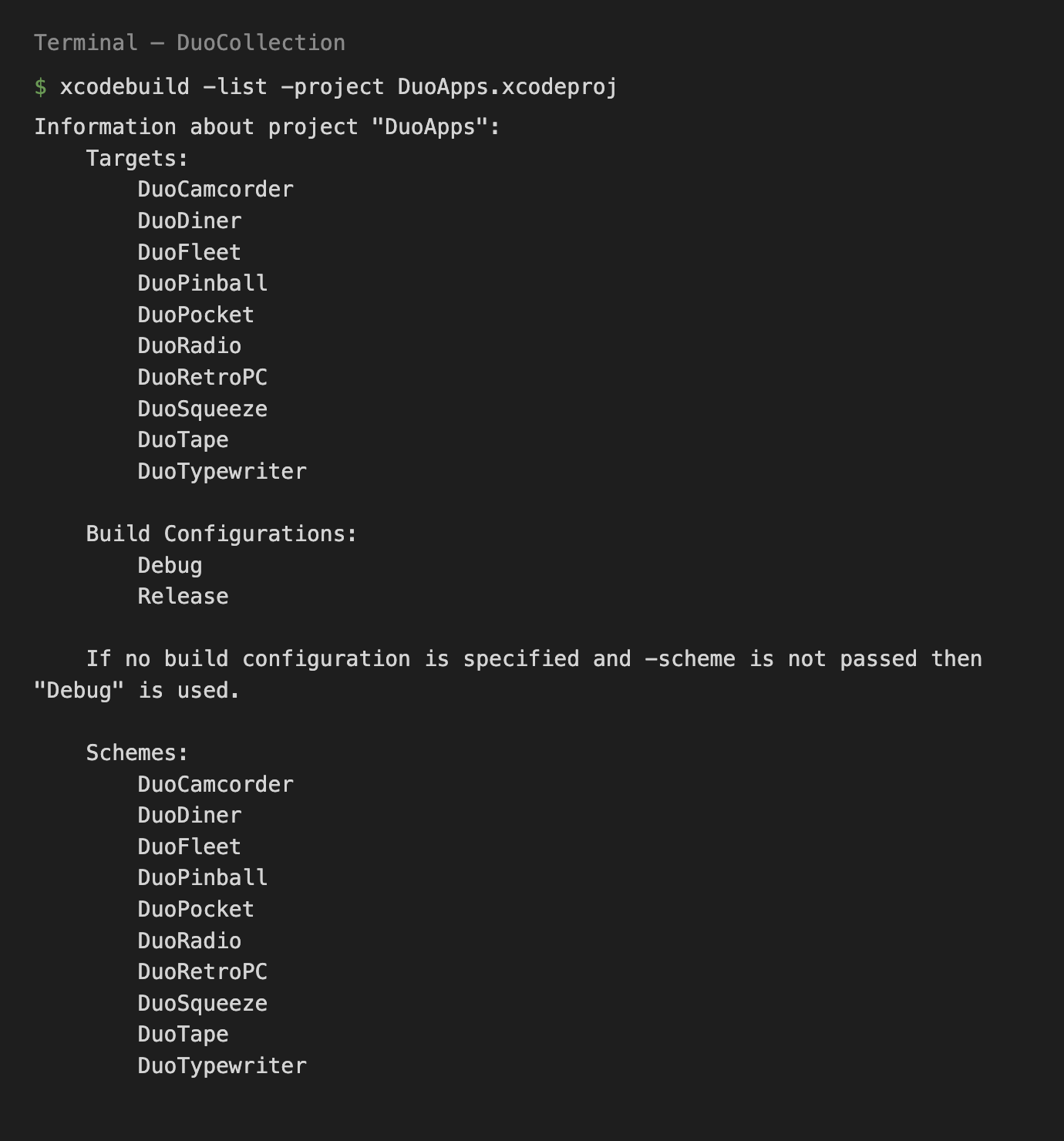
From the unzipped source folder, xcodebuild -list -project DuoApps.xcodeproj should list the ten targets and ten schemes:
Configuration reference
There is no remote console or server: every setting below lives in the source, and each change needs a rebuild in Xcode (Product › Run, or a new archive for the App Store).
These apps have no API keys, no .env file and no server settings. Everything you can configure lives in project.yml (or the matching Xcode build settings) and in the two Config/*.plist files.
| Setting | Default | Purpose | Where (project.yml / Xcode) |
|---|---|---|---|
DEVELOPMENT_TEAM | "" (empty) | Your Apple Team ID for signing | line 22 · Signing & Capabilities → Team |
bundleIdPrefix | com.yourcompany.duo | XcodeGen default prefix | line 3 |
PRODUCT_BUNDLE_IDENTIFIER | com.yourcompany.duo.<app> | Unique app ID on the App Store | one per target · General → Bundle Identifier |
INFOPLIST_KEY_CFBundleDisplayName | Duo Pocket … | Name under the icon on the Home Screen | one per target · General → Display Name |
MARKETING_VERSION | 1.0 | Version shown on the App Store | line 11 · General → Version |
CURRENT_PROJECT_VERSION | 1 | Build number, must go up with each upload | line 12 · General → Build |
deploymentTarget iOS | 26.0 | Oldest iOS that can install the app | line 5 · General → Minimum Deployments |
TARGETED_DEVICE_FAMILY | 1,2 | iPhone + iPad. Use 1 for iPhone only | Build Settings → Targeted Device Families |
INFOPLIST_KEY_NS…UsageDescription | see Permissions | Text in the system permission prompt | Camcorder and Tape targets · Info tab |
INFOPLIST_KEY_ITSAppUsesNonExemptEncryption | NO | Answers Apple's export-compliance question | Build Settings |
INFOPLIST_FILE | Config/DuoTape-Info.plist, Config/DuoRadio-Info.plist | Extra Info.plist keys merged into the generated one | Tape and Radio targets only |
Line numbers refer to the project.yml shipped in version 1.0.0.
Rebrand each app
Before you publish, give every app you ship its own name, bundle ID, icon and look. This is required by Apple (see guideline 4.3) and keeps your apps distinct from other buyers' copies.
Work through these six items per app. The example uses Fleet, renamed to "Harbor Battle".
Display name
- In Xcode: target DuoFleet → General → Display Name →
Harbor Battle. - Or in project.yml: under
DuoFleet:changeINFOPLIST_KEY_CFBundleDisplayName: Duo FleettoINFOPLIST_KEY_CFBundleDisplayName: Harbor Battle, then runxcodegen generate.
The target and scheme name (DuoFleet) are internal and are not shown to users, so you can leave them. If you do rename a target in project.yml, also rename its folder Apps/DuoFleet to match, because each target compiles Apps/${target_name}.
Bundle ID
A bundle ID is a unique reverse-domain name, for example com.acme.harborbattle. You can only use an ID once on the whole App Store, so use your own domain or company name.
| App | Default bundle ID | project.yml line |
|---|---|---|
com.yourcompany.duo.pocket | 39 | |
| Tape | com.yourcompany.duo.tape | 48 |
| Squeeze | com.yourcompany.duo.squeeze | 56 |
| Camcorder | com.yourcompany.duo.camcorder | 63 |
| Fleet | com.yourcompany.duo.fleet | 73 |
| Retro PC | com.yourcompany.duo.retropc | 80 |
| Diner | com.yourcompany.duo.diner | 87 |
| Pinball | com.yourcompany.duo.pinball | 94 |
| Typewriter | com.yourcompany.duo.typewriter | 101 |
| Radio | com.yourcompany.duo.radio | 111 |
In Xcode the same value is in target → General → Bundle Identifier (or Signing & Capabilities). To replace the prefix in all ten at once, edit project.yml in a text editor with Find & Replace com.yourcompany.duo → com.acme, then regenerate.
UserDefaults (and Radio a small station cache). Changing the bundle ID makes it a new app, so earlier test data on your device does not carry over. That is expected.App icon
Each app has one icon file: Apps/<App>/Assets.xcassets/AppIcon.appiconset/AppIcon-1024.png (a single 1024 × 1024 universal icon; Xcode creates the smaller sizes).
- Design a 1024 × 1024 px PNG, square, no transparency, no rounded corners (iOS rounds them).
- In Xcode open
Apps/DuoFleet/Assets.xcassets→ AppIcon and drag your PNG onto the 1024 slot. Or replaceAppIcon-1024.pngin Finder with a file of the same name. - Build again. If the old icon still shows on the simulator, delete the app from the simulator and run again.
Colours and themes
Every app keeps its colours in one or two Swift files. Change the Color(...) values there and run the app to see the result. SwiftUI previews also work (ENABLE_PREVIEWS is on).
| App | Colour file(s) | Built-in themes the user can pick |
|---|---|---|
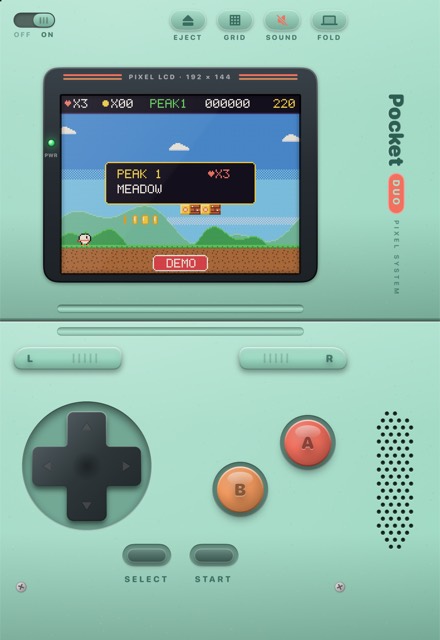
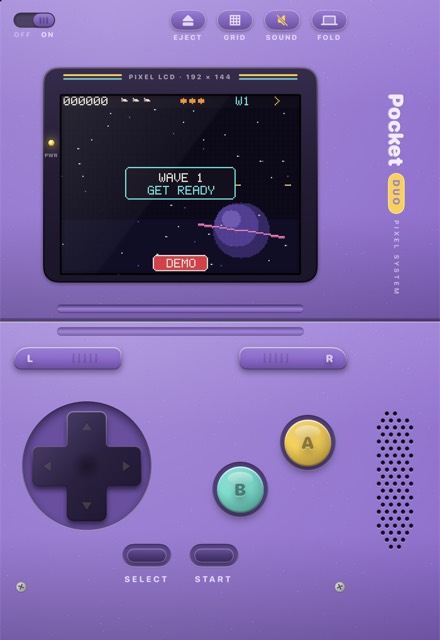
Apps/DuoPocket/Shell/ShellTheme.swift | 5 shell colourways in ShellTheme.all (Mint, Grape, Charcoal, Sunset, Paper) and 3 LCD modes (LCDMode) | |
| Tape | Apps/DuoTape/Views/Materials.swift (enum Palette) | none |
| Squeeze | Apps/DuoSqueeze/Views/Materials.swift (enum Palette) | none |
| Camcorder | Apps/DuoCamcorder/Views/Hardware/Materials.swift (enum Palette); video looks in Engine/RetroLook.swift | 3 looks: VHS, DV, FILM |
| Fleet | Apps/DuoFleet/Views/Shared/Theme.swift (enum Palette) | none |
| Retro PC | Apps/DuoRetroPC/Core/Style.swift (enum OS), Shell/Wallpapers.swift | case colour and wallpaper in the in-app Settings program |
| Diner | Apps/DuoDiner/Art/Palette.swift, Model/Themes.swift | table and plate themes bought with in-game coins (names and coin prices in Themes.swift) |
| Pinball | Apps/DuoPinball/Art/ArtKit.swift (enum Palette), playfield art in Art/PlayfieldPainter.swift | none |
| Typewriter | Apps/DuoTypewriter/Model/Colorway.swift | 4 colourways: Mint Holiday, Cherry, Navy, Ivory |
| Radio | Apps/DuoRadio/Views/Materials.swift (enum Palette) | none |
All artwork (cases, cassettes, cards, playfield, dials) is drawn in code, so there are no image files to replace besides the icon.
In-app brand text
The apps show their names inside the artwork too (for example "DUO PINBALL" on the dot-matrix display). Find every occurrence with this command in Terminal, from the unzipped folder:
grep -rn "Duo\|DUO" Apps/DuoFleet --include="*.swift" | grep -v "duo\."Replace DuoFleet with the folder of the app you are rebranding. The main visible strings in version 1.0.0:
| App | Files with visible brand text |
|---|---|
Shell/ShellParts.swift ("DUO", "Pocket Duo"), Engine/GameHost.swift | |
| Tape | Views/CassetteView.swift ("DUO STEREO"), Views/Materials.swift, Model/Tape.swift ("Duo Demo Tape"), Views/TapeShelf.swift, Layouts/OpenDeckLayout.swift |
| Squeeze | Views/Materials.swift, Model/SqueezeModel.swift |
| Camcorder | Views/Hardware/Cassette.swift, Views/Viewfinder/ViewfinderView.swift ("DUO-VISION" and the camera-permission message), Library/TapeLibrary.swift |
| Fleet | App/DuoFleetApp.swift ("DUO FLEET"), Views/Battle/ResultsOverlay.swift, Views/Menu/MenuView.swift |
| Retro PC | "DuoOS" and "DuoWorks" in Shell/BootScreen.swift, Shell/DesktopScreen.swift, Shell/ScreenView.swift, Programs/SettingsApp.swift, Core/Store.swift, Core/DuoOS.swift, Hardware/MachineViews.swift |
| Diner | Views/HUD.swift |
| Pinball | Art/PlayfieldPainter.swift, DMD/DMDController.swift |
| Typewriter | no "Duo" text in the artwork |
| Radio | Views/DialGlass.swift (dial name "AURORA"), Audio/NowPlayingBridge.swift (lock-screen album line), Views/StationLog.swift, Model/RadioBrowser.swift (userAgent, see Radio Browser) |
duo., such as "duo.postureChoice". They are internal storage keys, not visible text. The grep above already hides them.Version and build number
MARKETING_VERSION (1.0) and CURRENT_PROJECT_VERSION (1) are set once for all apps in project.yml lines 11 and 12. To give one app its own version, set General → Version and Build on that target in Xcode, or add MARKETING_VERSION under that target's settings: base: in project.yml. Raise the build number for every upload to App Store Connect.
Ship only some apps
Each app is independent. You can simply never build the ones you don't need. To remove one completely: in project.yml delete its block under targets:, delete its folder in Apps/, and run xcodegen generate. (In Xcode alone: select the target, press Delete, then delete its scheme in Product → Scheme → Manage Schemes.) Never delete Shared/DuoKit: every app needs it.
Per-app guide
For every app: what it does, how it uses the foldable, the files you will most likely edit, and the permissions it needs. All apps start in the Auto posture except where noted, and all show a posture menu button.
Pocket — retro handheld console
A handheld game console shell with four original built-in games on "cartridges": Pip's Peaks (platformer), Block Bloom (stack and clear), Noodle (snake-style) and Comet Cadet (shooter with a boss). Chiptune music and effects are synthesised. High scores are saved per game.
- Foldable layouts
- Closed: compact console. Open: big console. Laptop: screen on the upper half, controls on the lower half (
Shell/ConsoleLayouts.swift). - Key files
Games/Cartridge.swift(list of games, titles, taglines),Games/*.swift(each game),Engine/GameHost.swift(game loop, scores),Engine/Chiptune.swift(sound),Shell/ShellTheme.swift(colourways)- Permissions
- None
Tape — cassette deck
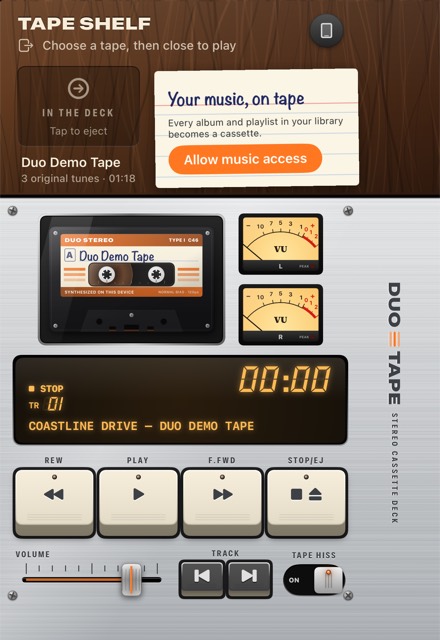
Turns the albums and playlists in the user's music library into cassettes on a shelf, and plays them on an animated deck with VU meters and an LCD. A synthesised demo tape works without library access. On the Duo, choosing a tape while open and then closing the phone starts playback ("close to play", TapeDeck.closeToPlay()).
- Foldable layouts
- Closed: pocket player. Open: open deck. Laptop: deck split across the fold (
Layouts/). - Key files
Audio/TapeDeck.swift(playback via the system music player),Model/TapeLibrary.swift(library access),Audio/DemoTapeComposer.swift(demo songs),Views/CassetteView.swift,Views/Materials.swift- Permissions
NSAppleMusicUsageDescription(Media & Apple Music),project.ymlline 50- Background audio
- Yes,
Config/DuoTape-Info.plist(details)
Squeeze — playable accordion
A playable accordion with a piano keyboard, bass buttons, bellows and a song display. Reed sounds are synthesised in real time. On a device, moving the halves (rotation picked up by the gyroscope) pumps the bellows.
- Foldable layouts
- Closed, open and laptop layouts in
Layouts/ - Key files
Audio/ReedEngine.swift(sound),Model/Music.swiftandModel/SqueezeModel.swift(notes, songs, settings),Model/MotionAir.swift(motion to air),Views/Materials.swift(colours)- Permissions
- None (device motion needs no prompt)
Camcorder — 90s video camera
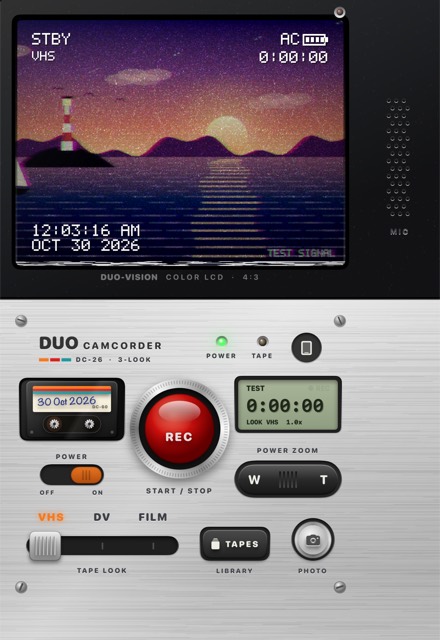
Records video with a live retro look: VHS (soft, colour bleed, tracking noise), DV (crisp early digital) or FILM (warm grain, gate weave, 18 fps), with a date stamp. Recordings are kept as "tapes" on a shelf and can be saved to Photos. Without a camera (simulator) it shows a test signal.
- Foldable layouts
- Viewfinder and control panel adapt to closed, open and laptop
- Key files
Engine/Camcorder.swift(capture session),Engine/RetroLook.swift(looks),Engine/FramePipeline.swift,Engine/TapeWriter.swift(writing video),Engine/DateStamp.swift,Library/TapeLibrary.swift(shelf, save to Photos),Views/Hardware/Materials.swift- Permissions
NSCameraUsageDescription,NSMicrophoneUsageDescription,NSPhotoLibraryAddUsageDescription(add only),project.ymllines 65–67
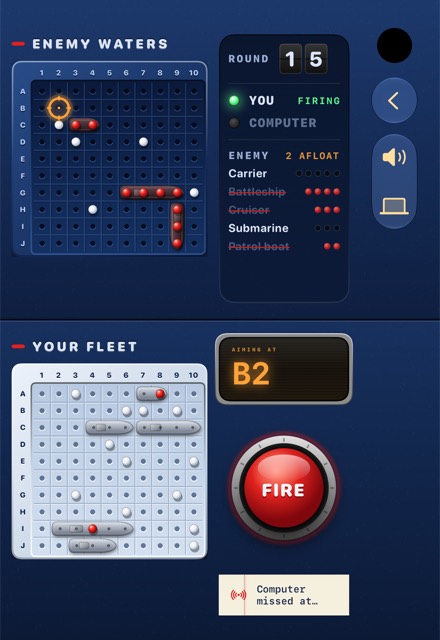
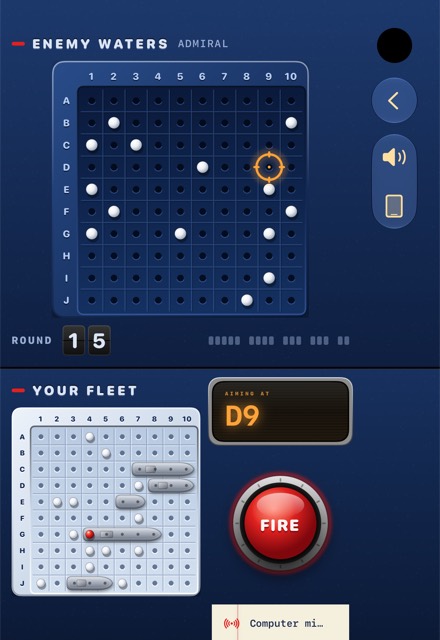
Fleet — naval battle board game
Classic grid naval battle. Play vs computer at three ranks (Ensign, Captain, Admiral) or pass and play with two players on one device. A service record keeps wins and losses per rank. Half-folding hides your own board from the other player.
- Foldable layouts
- Closed, open and laptop (see the verified screenshots in Test laptop posture)
- Key files
Model/FleetAI.swift(computer opponent by rank),Model/Board.swift,Engine/FleetGame.swift,Views/Menu/MenuView.swift,Views/Shared/Theme.swift,Feedback/Sound.swift- Permissions
- None
Retro PC — tiny laptop with an original OS
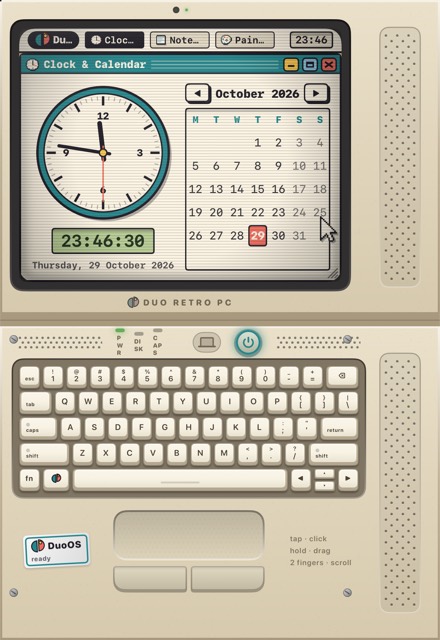
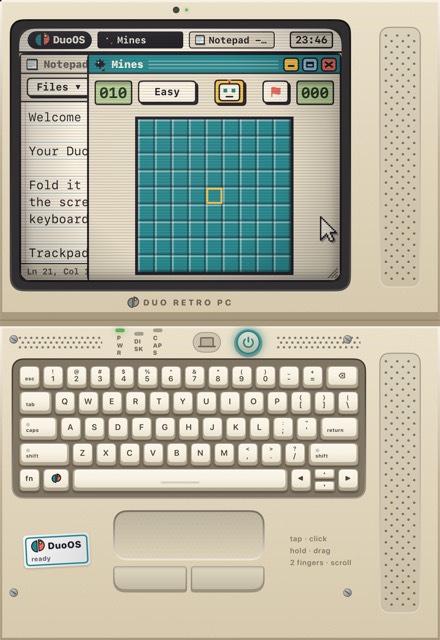
A small retro computer running "DuoOS", an original desktop with windows, a boot screen and nine programs: Calculator, Bricks, Clock & Calendar, Mines, Paint, Snake, Notepad, Solitaire and Settings. In laptop posture the screen is on the upper half and a keyboard and trackpad on the lower half. The desktop state is saved when the app goes to the background.
- Starts in
- Laptop posture on first launch (
DuoRetroPCApp.swiftregisters it as the default). The user can switch to Auto in the posture menu. On the closed display or any phone it shows a pocket layout. - Key files
Programs/*.swift(each program),Core/DuoOS.swift(windows, saving),Core/Store.swift(program list),Core/Style.swift(colours),Shell/Wallpapers.swift,Shell/BootScreen.swift,Core/Synth.swift(sounds)- Permissions
- None
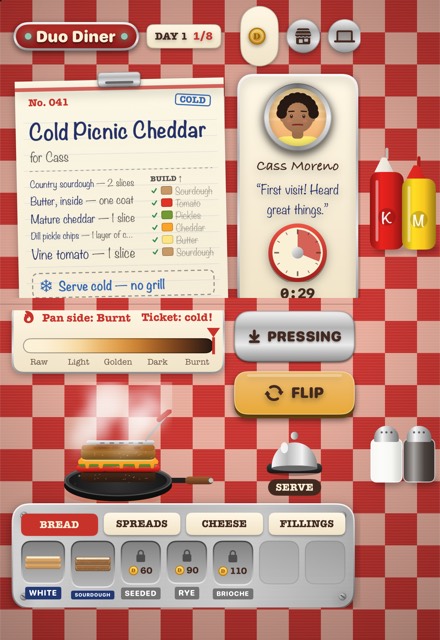
Diner — sandwich-building and grilling game
A cosy cooking game: read the customer's ticket, build the sandwich on the tray, grill it and serve. You earn in-game coins (pay plus tips) and spend them in a shop on table and plate themes. Coins are an in-game currency only; there are no real-money purchases. Progress is saved on the device.
- Foldable layouts
- Counter view; laptop uses
FoldSplit(Layouts/KitchenView.swift). On the narrow Duo inner display it uses a stacked layout. - Key files
Model/Menu.swiftandModel/Ingredient.swift(recipes),Model/Diner.swift(game, coins, saving),Model/Scorer.swift,Model/Themes.swift(shop items and prices),Art/*.swift(drawn food and customers),Audio/DinerSound.swift- Permissions
- None
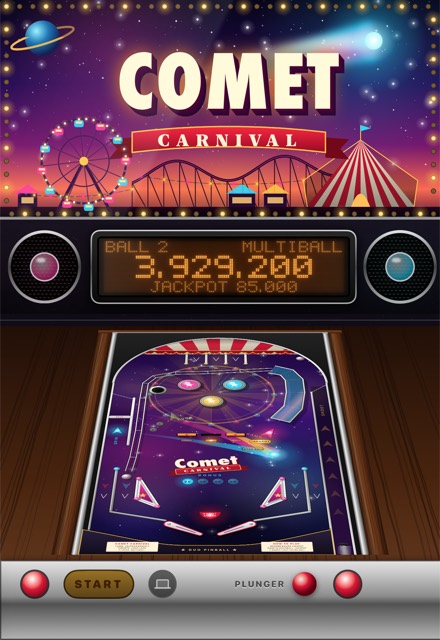
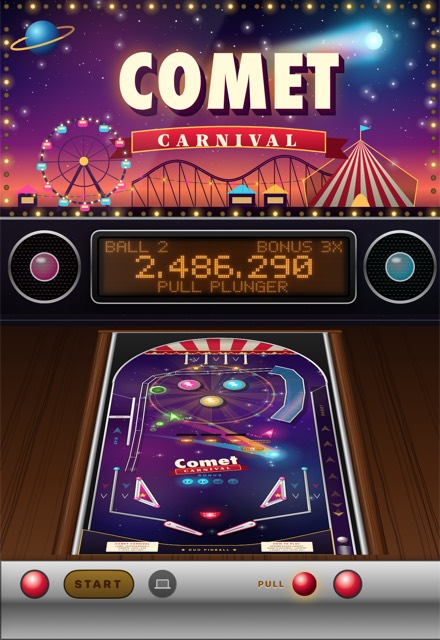
Pinball — physics pinball table
A full pinball table with custom physics, a backglass and a dot-matrix display (DMD), synthesised sound, haptics and high scores. Shaking the device nudges the table. In laptop posture the backglass and DMD sit on the upper half, the playfield on the lower half.
- Starts in
- Laptop posture on first launch on large displays; on a phone or the closed display it always shows the compact table.
- Key files
Physics/Table.swift(table geometry),Physics/PhysicsWorld.swift,Game/PinballGame.swift(rules, scoring),Game/HighScores.swift,Art/PlayfieldPainter.swiftandArt/BackglassView.swift(artwork),DMD/DMDController.swift(display texts),Audio/PinballAudio.swift,Support/ShakeSensor.swift- Permissions
- None
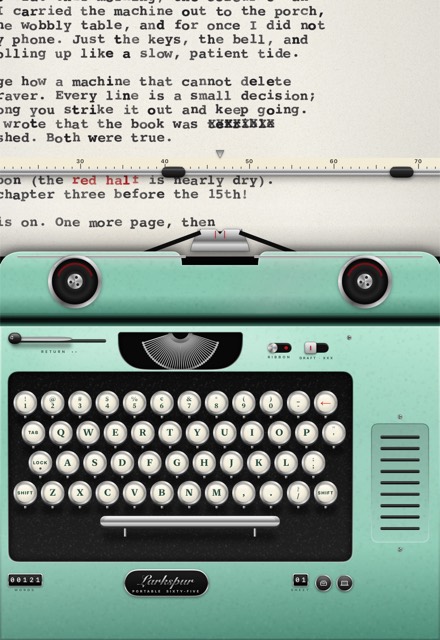
Typewriter — mechanical typewriter
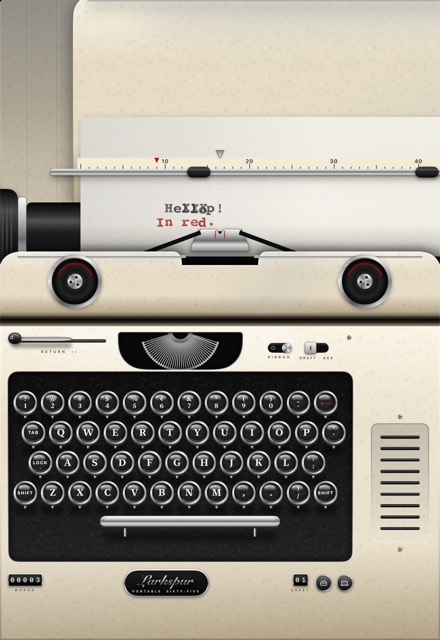
Types onto a sheet of paper in a moving carriage, with key strikes, bell and return sounds, haptics and a red ribbon. Works with the on-screen keys and with a hardware keyboard. Documents are kept in a drawer and can be shared as an A4 PDF. Four colourways.
- Starts in
- Laptop posture on first launch: paper on the upper half, keyboard on the lower half.
- Key files
Model/Typewriter.swift(typing, settings, saving),Model/KeyLayout.swift(keys),Model/Colorway.swift,Drawer/Exporter.swift(PDF),Drawer/DocumentDrawer.swift,Audio/TypewriterSound.swift,Support/HardwareKeyboard.swift- Permissions
- None (PDF sharing uses the system share sheet)
Radio — tube radio for internet stations
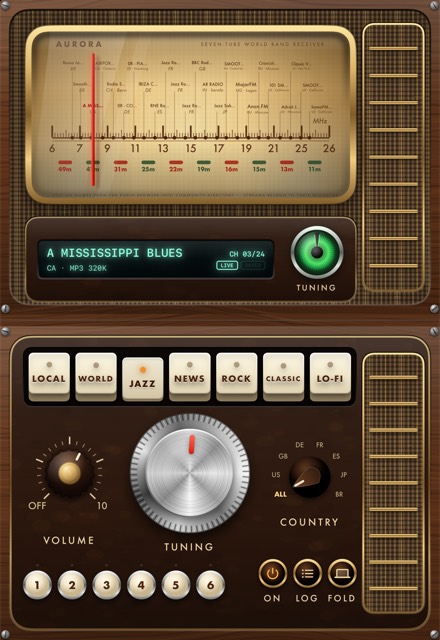
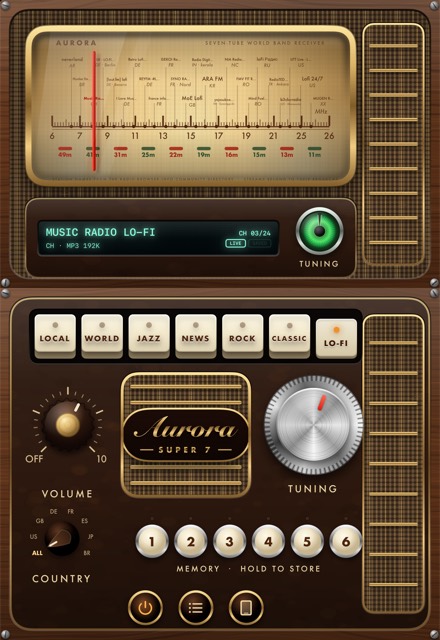
A vintage world-band radio that tunes real internet radio stations. Seven bands (LOCAL, WORLD, JAZZ, NEWS, ROCK, CLASSIC, LO-FI), a country dial, six preset buttons, a "magic eye" tuning indicator, a VFD strip with the now-playing title, synthesised static between stations, a station log, and lock-screen controls. The last station list is cached so it still shows when offline.
- Starts in
- Laptop posture on first launch; the closed display always shows the pocket radio.
- Key files
Model/RadioBrowser.swift(station directory client),Model/Station.swift(bands and their tags),Audio/StreamPlayer.swift(playback),Audio/RadioTuner.swift,Audio/StaticSynth.swift,Audio/NowPlayingBridge.swift(lock screen),Views/DialGlass.swift,Views/Materials.swift- Permissions
- None (network access needs no prompt)
- Background audio
- Yes, plus a media-only network exception,
Config/DuoRadio-Info.plist - Third-party service
- Radio Browser community directory (read before publishing)
DuoKit and the foldable
Architecture
Each app is its own target with its own folder under Apps/. All of them compile the shared code in Shared/DuoKit, which reads the device posture and lays each app out for it.
Shared/DuoKit is four small files compiled into every app. It decides which layout an app shows.
Postures: DuoPosture, DuoPostureReader, PostureMenu
| Posture | Meaning | How it is detected |
|---|---|---|
.closed | Folded, outer display, or any phone-width window | Automatic: horizontal size class is compact |
.open | Fully open inner display (or an iPad) | Automatic: horizontal size class is regular |
.laptop | Half-folded: upper half shows content, lower half takes input | Chosen by the user in PostureMenu |
.tabletop | Unused code building block (flat between two people) | Not a feature of v1.0.0: no app supports it and PostureMenu does not offer it |
iOS does not report the hinge angle, so the app cannot know on its own that the phone is half-folded. That is why each app shows a small posture button (PostureMenu) with Auto and Laptop. The choice is stored under the key duo.postureChoice.
Each app wraps its root view in DuoPostureReader, which works out the posture and passes it down as @Environment(\.duoPosture). The app then switches layouts, for example in Apps/DuoTape/DuoTapeApp.swift:
DuoPostureReader(supported: [.closed, .open, .laptop]) { posture in
    switch posture {
    case .laptop: LaptopDeckLayout(showShelf: $showShelf)
    case .closed: PocketPlayerLayout(showShelf: $showShelf)
    default: OpenDeckLayout()
    }
}
Retro PC, Pinball, Typewriter and Radio make Laptop the first-run choice with UserDefaults.standard.register(defaults: ["duo.postureChoice": "laptop"]) in their App initialiser. Remove that line if you want them to start in Auto.
FoldSplit, FaceToFace and HingeGap
FoldSplit { top } bottom: { … }gives the top and bottom views exactly half the height each, with a thinHingeGapline between them, so nothing sits on the fold. Used by Diner, Radio, Pocket, Retro PC and Squeeze.FaceToFaceis an unused helper (the same split with the far half rotated 180°). No app uses it in v1.0.0, so a face-to-face posture is not a feature of this item; it is left in DuoKit only as a starting point if you build one yourself.HingeGapdraws the separator line at the fold.
DuoDisplayClassFixer: the inner-display size class
The Duo's open inner display is only about 466 points wide, so iOS reports a compact width there, the same as a phone. Without a fix the apps would show their phone layout while the device is open. DuoDisplayClassFixer (in DuoDisplayClass.swift) looks at the window shape: if the short side is at least 400 pt and the long side is less than 1.7 × the short side (tablet-shaped), it overrides the window's horizontal size class to regular. Tall phone-shaped windows (outer display, iPhones, Slide Over) are left alone. DuoPostureReader installs it automatically, so you don't need to add it yourself.
Test laptop posture on the simulator
You can force a posture with a launch argument instead of tapping the menu:
- In Xcode choose Product → Scheme → Edit Scheme… (or Option-click Run).
- Select Run → Arguments. Under Arguments Passed On Launch click + and add
-duo.postureChoice laptop. - Run on the iPhone Duo simulator (or an iPad simulator). Use
-duo.postureChoice autoto go back to automatic.
From Terminal, with a booted simulator and an installed build: xcrun simctl launch booted com.yourcompany.duo.fleet -duo.postureChoice laptop. We verified this on the iPhone Duo simulator with Fleet:
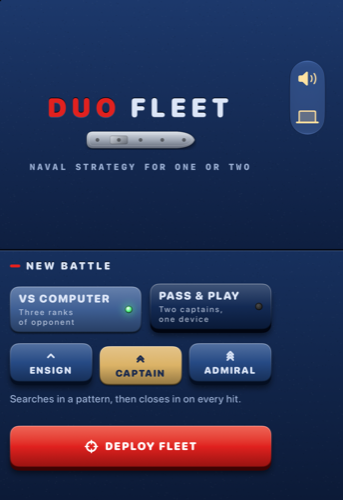
-duo.postureChoice laptop: menu split at the fold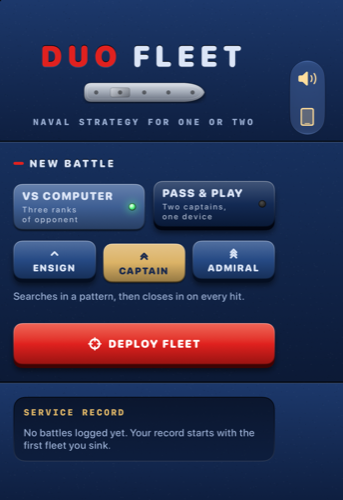
-duo.postureChoice auto: open layoutTo check the closed layout: fold the iPhone Duo from the Simulator app, or run on any iPhone simulator. On the iPhone Duo simulator, take screenshots of the inner display with xcrun simctl io booted screenshot --display=1 shot.png.
Extra preview arguments for checking the closed layout on a big simulator: -pocket.previewClosed YES, -squeeze.phoneFrame YES, -cam.previewCompact YES, -tape.forceCompact YES, -pinball.forceCompact YES, -radio.forceCompact YES, -retropc.mode pocket, and in Debug builds -tw.phoneFrame YES.
Normal iPhones and iPads
The apps do not need a foldable. On a regular iPhone they use the closed (compact) layout; on an iPad or a wide window, the open layout. The posture menu still offers Laptop, which shows the split layout on any screen. All ten apps build for iPhone and iPad (TARGETED_DEVICE_FAMILY "1,2").
Permissions and privacy
When an app first uses the camera, microphone, Photos or music library, iOS shows a prompt with the text from the app's "usage description". Rewrite these texts with your app's name before publishing.
| App | Key | Default text | project.yml |
|---|---|---|---|
| Camcorder | NSCameraUsageDescription | Duo Camcorder records video through your camera with a retro tape look. | line 65 |
| Camcorder | NSMicrophoneUsageDescription | Duo Camcorder records sound with your videos. | line 66 |
| Camcorder | NSPhotoLibraryAddUsageDescription | Duo Camcorder saves your finished tapes to Photos. | line 67 |
| Tape | NSAppleMusicUsageDescription | Duo Tape plays the albums and playlists in your music library on its cassette deck. | line 50 |
The other eight apps request no permissions. In Xcode the same keys are in the target's Info tab.
Privacy manifests (PrivacyInfo.xcprivacy)
Each app folder has a PrivacyInfo.xcprivacy, which Apple requires. In v1.0.0 all ten declare: no tracking, no tracking domains, no collected data types, and the "required reason" APIs they use:
| API category | Reason code | Apps |
|---|---|---|
| User defaults | CA92.1 | all ten |
| File timestamp | C617.1 | Camcorder |
| System boot time | 35F9.1 | Pinball |
If you add an SDK (ads, analytics, crash reporting), update the manifest and your App Store privacy answers to match.
App Privacy in App Store Connect
If you publish the code unchanged, the apps contain no accounts, analytics, ads, tracking or own server, and data (scores, documents, recordings) stays on the device. In that case the usual answer to App Store Connect → App Privacy is "Data Not Collected". You are responsible for your own answer: if you add any SDK or server, review it again.
Background audio (Tape, Radio)
Tape and Radio keep playing when the user leaves the app or locks the screen. This needs the audio background mode, which is in Config/DuoTape-Info.plist and Config/DuoRadio-Info.plist (it cannot be set as a build setting, so these two targets use a small Info.plist that Xcode merges with the generated one). In Xcode you see it as Signing & Capabilities → Background Modes → Audio, AirPlay, and Picture in Picture.
Radio shows the station and title on the lock screen and responds to the lock-screen play/pause controls (Audio/NowPlayingBridge.swift). Apple's reviewers check that apps with the audio background mode really play audio in the background; both apps do. Do not add this mode to apps that don't need it.
Radio Browser and the streams (Radio)
Radio does not ship a station list. At runtime it asks the free, community-run Radio Browser directory (radio-browser.info) for popular working stations by band and country. No account or API key is needed.
- How it connects:
Model/RadioBrowser.swiftfetches the list of mirror servers fromhttps://all.api.radio-browser.info/json/servers, picks one (fallbackde1.api.radio-browser.info), then calls/json/stations/search. As the directory asks, it reports a "click" when a station is played and sends a descriptiveUser-Agent. - Change the User-Agent (
static let userAgent) to your app's name and version. - Third-party service: Radio Browser is a volunteer project with no guaranteed uptime. If it is unreachable, the app shows the last cached list for that band (
StationCache). Check their terms on the website before publishing. - Streams are third-party content. The audio comes from each broadcaster, not from you or this code. Station names and availability change over time. The station log already tells users that names come from the Radio Browser directory and that streams belong to their broadcasters.
App Transport Security: NSAllowsArbitraryLoadsForMedia
iOS blocks plain http:// connections by default. Many radio stations still stream over http://. Config/DuoRadio-Info.plist sets NSAppTransportSecurity → NSAllowsArbitraryLoadsForMedia = YES, which allows only media playback (AVFoundation streams) over plain HTTP. All other network requests, including the directory API, still require HTTPS. The player also tries the https:// version of a stream first and falls back to http:// only if needed (Audio/StreamPlayer.swift). If App Review asks, explain that the exception is limited to media streams of third-party radio stations.
Publish to the App Store
Repeat these steps for each app you publish. You need a paid Apple Developer Program membership.
- Rebrand the app: name, bundle ID, icon, colours and in-app text (Rebrand each app).
- Register the bundle ID: with automatic signing Xcode does this the first time you build for a device with your Team. You can also add it at developer.apple.com → Certificates, IDs & Profiles → Identifiers.
- Create the app record: in App Store Connect → Apps → + → New App. Choose iOS, your app name, language, the bundle ID from step 2 and a SKU (any text, e.g.
harborbattle-001). - Archive: in Xcode choose the scheme, set the destination to Any iOS Device (arm64), then Product → Archive.
- Upload: when the Organizer window opens, select the archive → Distribute App → App Store Connect → Upload, and follow the defaults.
- Fill in the listing: description, keywords, support URL, privacy policy URL, category, age rating, price. Upload screenshots of your rebranded app for the required iPhone and iPad sizes.
- App Privacy: answer the questionnaire (see above; "Data Not Collected" if unchanged).
- Export compliance:
ITSAppUsesNonExemptEncryption = NOis already set, so App Store Connect will not ask about encryption for each build. - Select the uploaded build in the version page and click Add for Review, then Submit.
Apple guideline 4.3 (spam): rebrand meaningfully
Apple's App Review Guideline 4.3 rejects apps that are copies of apps already on the store, or many near-identical apps. Other buyers have the same source code. Before you submit:
- Use a new name and a new icon for every app.
- Change the visual design: colours, themes, in-app brand text, and ideally layouts or artwork.
- Add something of your own: new games or levels (Pocket cartridges, Pinball table), new recipes (Diner), new looks (Camcorder), new programs (Retro PC), new bands (Radio).
- Do not submit several of these apps under one account as thin variants of each other.
Publishing an unchanged copy is likely to be rejected and is not what this package is meant for.
Costs not included in the price
The item price covers the source code and documentation. Who pays for what:
- Apple Developer Program membership, needed to run on your own devices for more than a few days and to publish: paid by you to Apple, yearly.
- Radio Browser (Duo Radio station directory): a free, volunteer-run community service with no key and no fee today. If it ever changes its terms, replacing the directory is your responsibility.
- Radio streams belong to their broadcasters; playing a station costs nothing, but you are responsible for complying with their terms in your market.
- No servers, databases, analytics or other paid services are used by any of the ten apps.
Updating to a new version of this package
- Before you change anything, put your copy under version control (e.g.
git initand commit) so you can see your own changes later. - Read the changelog of the new version to see which files changed.
- Unzip the new version into a separate folder. Do not overwrite your project.
- Compare the folders (for example with
git diff --no-index old/Apps/DuoFleet new/Apps/DuoFleetor a tool like FileMerge, included with Xcode) and copy over the changes you want. - If
project.ymlchanged and you use XcodeGen, merge it by hand, keeping your Team, bundle IDs and names, then runxcodegen generate. - Raise your build number before uploading the update.
Troubleshooting
| Problem | Cause and fix |
|---|---|
| "Signing for 'DuoFleet' requires a development team" | No Team is set. Select the target → Signing & Capabilities → Team (step 2). Not needed for simulators. |
| "Failed to register bundle identifier" / "is not available" | Someone already uses that bundle ID. Change it to one with your own domain, e.g. com.acme.harborbattle. |
| "No profiles for '…' were found" or provisioning errors | Keep "Automatically manage signing" on, check you are signed in (Xcode → Settings → Accounts), connect the device once, then build again. With a free Personal Team, some capabilities and the App Store are not available. |
| "No such module …" | The project uses only Apple frameworks, so this usually means an older Xcode or a broken build cache. Check you use Xcode 27.1 or newer, then Product → Clean Build Folder (Shift + Cmd + K). If it persists, quit Xcode and delete ~/Library/Developer/Xcode/DerivedData/DuoApps-*. |
| "The iOS 26.0 deployment target… / SDK not found" or Swift syntax errors | Your Xcode is too old. Install Xcode 27.1 or newer. |
| A Swift file is missing after editing project.yml | Run xcodegen generate again and reopen the project. Keep new files inside Apps/<App>/ or Shared/DuoKit/. |
| Simulator shows a black screen | Wait for the first launch to finish (the first boot of a simulator is slow). If it stays black: Device → Erase All Content and Settings in the Simulator app, then run again. On the iPhone Duo simulator the screenshot command's default display can be black; use --display=1 for the inner display. |
| On the Duo the app shows the phone layout while open | The inner display reports a compact size class. DuoDisplayClassFixer fixes this. Make sure your root view is still wrapped in DuoPostureReader (which installs the fixer). If you built a new screen outside it, wrap it. |
| The laptop layout never appears | Laptop must be chosen in the posture menu (iOS cannot sense the hinge), or use the launch argument -duo.postureChoice laptop. |
| The app starts in laptop layout on an iPad | Retro PC, Pinball, Typewriter and Radio default to Laptop. Choose Auto in the posture menu, or remove the register(defaults:) line in the app's App file. |
| Camcorder shows a test pattern | No camera (simulator) or camera permission was denied. On a device, allow access in Settings → Privacy & Security → Camera. |
| Tape shows only the demo tape | Media & Apple Music access was not allowed, or the library is empty (always on the simulator). Allow it in Settings → Privacy & Security → Media & Apple Music. |
| Radio shows no stations or a saved list | No internet, or the Radio Browser directory is temporarily unreachable. Check the connection and switch band to load the list again; meanwhile the app shows the last list it saved for that band. Some individual stations may be offline. |
| No sound | Check the side switch / silent mode and volume, and the in-app sound toggles. On the simulator, check your Mac's output device. |
| Old icon or name after rebranding | Delete the app from the device or simulator and run again; iOS caches icons. |
| Archive is greyed out | Set the destination to "Any iOS Device (arm64)" or a connected device, not a simulator. |
FAQ
Do I need an iPhone Duo?
No. The simulator and any iPhone or iPad running iOS 26 or later are enough. The foldable layouts can be tested on the iPhone Duo simulator or on an iPad.
Can I publish all ten apps?
Your license terms are on the marketplace item page. Technically each app is a separate target and can be published separately, but each one must be meaningfully rebranded (guideline 4.3).
Do I need to install anything besides Xcode?
No. There are no packages or pods. XcodeGen is optional.
Is there a server or admin panel?
No. All apps run entirely on the device. Only Radio uses the internet, to reach the public station directory and the streams.
Can I add ads or in-app purchases?
The code contains none. You can add them yourself (e.g. with StoreKit), and must then update the privacy manifest and App Privacy answers.
Can I use the code in Objective-C or UIKit-only projects?
The apps are SwiftUI apps. Individual Swift files can be reused in other Swift projects; DuoKit is self-contained (SwiftUI and UIKit only).
Which Swift version?
Swift language mode 5 (SWIFT_VERSION: "5.0"), compiled with the Swift compiler in Xcode 27.1.
Credits and licenses
- Third-party code: none. The project uses only Apple's frameworks that come with Xcode: SwiftUI, UIKit, Foundation, Observation, AVFoundation, MediaPlayer, Photos, CoreImage, CoreGraphics, CoreMotion, QuartzCore, Metal, MetalKit and AudioToolbox. There is no third-party license file to include.
- Sound: no audio files are bundled. Every sound (chiptunes, reeds, tape hiss, typewriter strikes, pinball, radio static, the Tape demo songs) is synthesised in code.
- Graphics: all artwork is drawn in code with SwiftUI and Core Graphics, using system fonts and SF Symbols. The only image files are the ten app icons, which are included for you to replace.
- Games and programs (Pip's Peaks, Block Bloom, Noodle, Comet Cadet, DuoOS programs, the pinball table) are original to this package.
- Runtime service: Duo Radio uses the Radio Browser community directory (radio-browser.info). It is not part of the package, and its data and the radio streams belong to their respective owners.
- Trademarks: iPhone, iPad, Xcode, Apple Music and App Store are trademarks of Apple Inc. "iPhone Duo" in this guide refers to Apple's foldable two-screen iPhone. This package is not affiliated with or endorsed by Apple.
Changelog
Version 1.0.0 — initial release
- Initial release: 10 SwiftUI apps (Pocket, Tape, Squeeze, Camcorder, Fleet, Retro PC, Diner, Pinball, Typewriter, Radio) and the shared DuoKit.
- Closed, open and laptop layouts in every app; posture menu; inner-display size-class fix for the iPhone Duo.
- Ready
DuoApps.xcodeprojwith empty Team andcom.yourcompany.duo.*placeholder bundle IDs, plusproject.ymlfor XcodeGen. - Built with Xcode 27.1 (iOS 27.1 SDK); minimum iOS / iPadOS 26.0.
Support policy
Support is provided via the CodeCanyon item comments / author profile. Please include the app name, your Xcode version, the device or simulator and the exact error text or a screenshot.
| Included | Not included |
|---|---|
| Answering questions about the package and this documentation Help with building and running the included apps Fixing bugs in the included code | Custom changes, new features or redesigns Publishing the apps for you or App Review outcomes Problems caused by modified code or third-party SDKs Availability of the Radio Browser service or radio streams |
Item support follows the Envato item support policy described on the marketplace.